



How do I manage staff on the web panel?
The Staff page in the web panel lists every employee and manager in your organisation in one place. From here you can search and filter people, add new staff, import many people from a CSV or XLSX file, send invitations, and archive or offboard someone. Managers only see the staff in the branches they manage.
Role and persona
Account owners can add staff, bulk import and change roles. Managers view the staff in their branches and can select Add staff only for the Employee role in those branches. Identity details such as the National ID, and the Contract Details and Payroll tabs, are visible to the owner only; managers can use the HR tab for leave requests, leave balance and probation decisions. Managers can archive, offboard and reactivate people in the Employee role.
Prerequisites
- You are signed in to the web panel as an account owner or manager.
- At least one branch is set up before you add a person. Position and department are optional.
- To download the sample CSV for bulk import, you need at least one active branch.
Steps
Find a person
- Open Staff from the left menu. The summary at the top shows how many staff are in your scope.
- Use the Search staff box to search by name.
- Narrow the list with the Branch, Position, Employee Type, Status and Invite status filters. Active filters appear as chips; Clear all removes them.
- The list shows Name, Position, Branch, Status and Probation Ends. Select the Name heading to sort by name. With many records, use Previous and Next to move between pages.
- Select a row to open that person's record.
Add one person
- On Staff, select Add staff. Owners and managers see this button; a manager can only add people in the Employee role to the branches they manage.
- On the Personal step, enter first and last name. If Send an invitation after saving stays selected, email and phone are also required. Date of birth, National ID and Employee / Registry No are optional.
- On the Organization step, choose the role (Employee or Manager), the employment start date and at least one branch. A manager can have several branches.
- On the Contract step, choose the work type (Full-time, Part-time or Gig). Term type, pay and weekly contracted hours are optional; Gig has no fixed pay field.
- On the Review step, check the details and select Save staff.
If you do not need an invitation email yet, clear Send an invitation after saving. The person is listed as No account yet until an account is created, and can still be given contract details and shifts, but cannot see those shifts in the app until the account is created.
Bulk import
- Open Bulk actions > Bulk add staff. This menu is shown to the account owner.
- Select Download sample CSV, then fill in the template. It has 19 fixed columns (including the registry number column); older 18-column files are also accepted. Your own headers are not mapped.
- Write dates as YYYY-MM-DD (for example 2026-03-09). Branch, position and department names must match your organisation's names exactly. The limit is 500 rows and 1 MB.
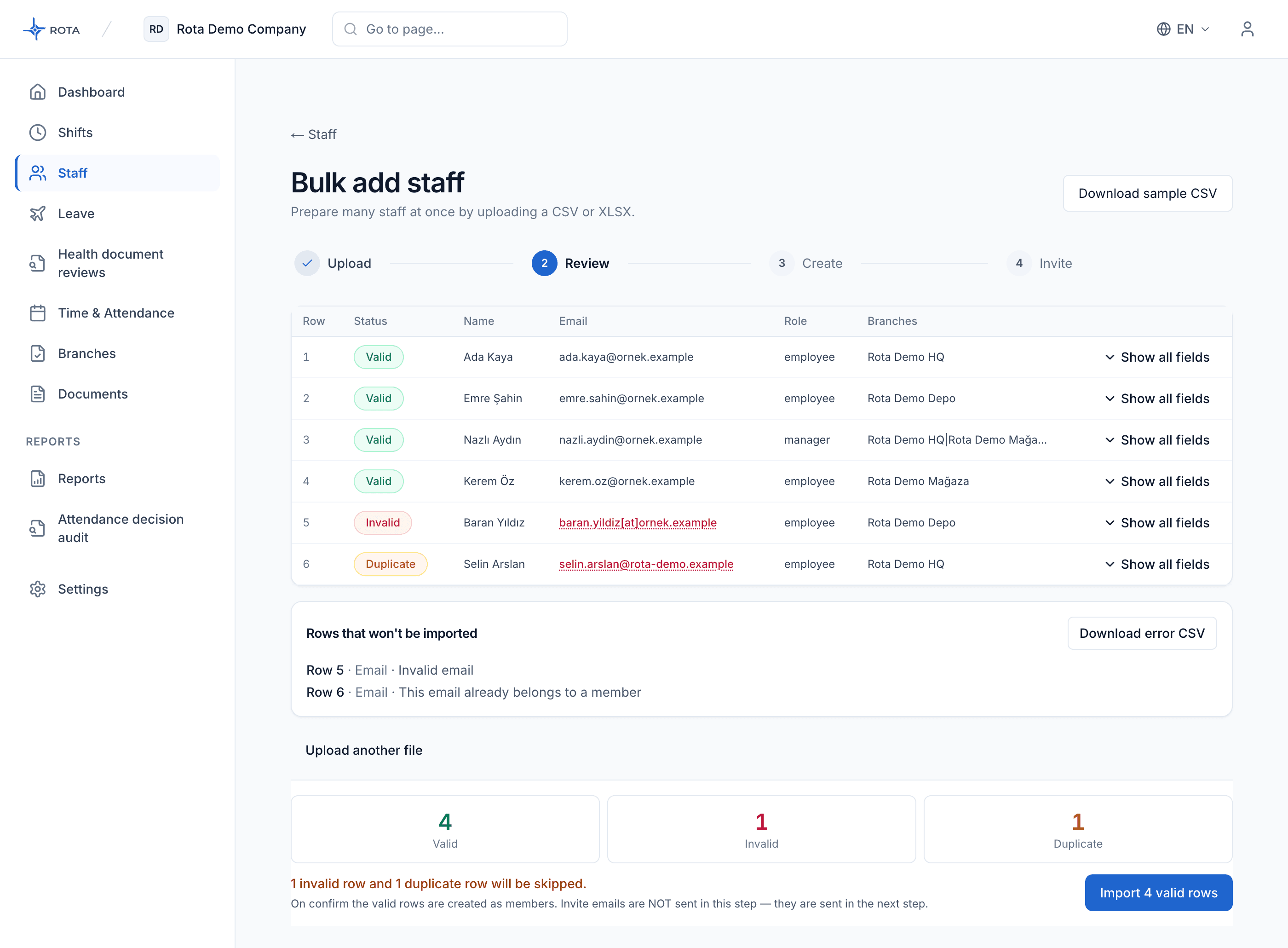
- Upload the CSV or XLSX file. Review the Valid, Invalid and Duplicate counts; use Download error CSV to fix rows that will not be imported.
- Select Import N valid rows (N is the number of valid rows) to create the records. This step does not send invitation emails.
- In the next Invite dispatch step, select Send invites to N members. If the email rate limit is reached, use Send remaining invites after the time shown. For failed invitations, select Resend invite on the person's record.
Manage an existing record
- Select a person and open the Personal, Contract Details, Payroll and HR tabs. The owner can edit this information; Contract Details and Payroll are shown to the owner only. Managers see the Personal tab as read-only and use the HR tab.
- For someone whose invitation is pending, select Resend invite on their record. To send the first invitation to a person with no account, enter the email and select Send invitation.
- An owner can use Change role to update the role. A manager role needs at least one branch.
- For someone who has not started working yet, Archive removes them from the list; nothing is deleted and Reactivate brings them back.
- For someone who has already started working, use Offboard: choose the employment end date and reason. The contract is closed, the person is archived and future shift assignments are cancelled.
Successful result
The new person appears in the Staff list. If you sent an invitation, the status is Invitation pending and changes to Active once they accept. If you did not, the status stays No account yet.
Common problems
| Situation | What to do |
|---|---|
| Bulk actions is missing on the list | This menu is shown to the account owner only. Add staff is shown to owners and managers. |
| A person you expect is not in the list | Clear the active filters and the search box. If you are a manager, the person may be outside the branches you manage. |
| Status shows Invitation failed, Invitation not delivered or Reported as spam | Open the record and check the email address. Only the owner can correct the email address; if you are a manager, ask the owner to correct it, then select Resend invite. |
| "This national ID is already registered", "Employee registry number already exists" or "This staff member already exists" | Do not create a second record; open the existing person from the Staff list as the message suggests. |
| "This person is archived" dialog | Choose Reactivate instead of creating a new record. A person with a pending invitation and a linked account gets a new invitation. For a person with no linked account (No account yet), reactivate first, then send the invitation from their record. |
| "Free plan seat limit reached" | The free plan includes up to 10 active users, so the person is not added. An owner needs to upgrade the plan. |
| Rows show Invalid in a bulk import | Check the date format, required fields and branch names; the Error column in the error CSV gives the reason. |
| Offboard is requested instead of Archive | The person has already started working; use the Offboard flow. |
Related articles
How do I plan shifts on the web panel? · How is leave managed in the web panel? · How do I define branches, departments and roles?